Why Freelancers Lose Clients Over Reports, Not Results
A freelancer’s work is invisible until a client sees a number. You can build links, fix crawl errors, and rewrite title tags all month, and if the client receives nothing, they assume nothing happened. Retention data from agency and freelance churn studies consistently points to months 3 and 4 as the peak cancellation window, and the common thread is not poor performance, it is poor visibility. The client did not see the data.
Search Console contains the proof. Average position moving from 38 to 22 over 28 days is meaningful progress on a competitive term. But if that number sits inside a property the client never logs into, it does not exist for them.
The standard response is a manually compiled PDF: pull screenshots, format tables, write commentary, send it. That takes 2 to 3 hours per client per month. Multiply that across five clients and you have a full working day spent on reporting rather than the work that drives results. The alternative is a one-time setup that delivers a live, auto-refreshing report on a schedule you define. The rest of this article is that setup.
What Search Console Actually Gives You Without a Third-Party Tool
Search Console exposes clicks, impressions, CTR, and average position through the Performance report, plus page indexing status through the Coverage report. Data goes back 16 months. The built-in Performance email digest exists but delivers only to the property owner’s inbox, not to a client’s email address. For client-facing delivery, you need to connect Search Console to Looker Studio and use that tool’s scheduling feature instead.
To be precise about what is available natively:
- Performance report: clicks, impressions, CTR, average position, filterable by query, page, country, device, and search type. The default view is 28 days, which is the most useful window for month-over-month client conversations.
- Coverage report: indexed pages versus pages with errors or warnings, broken down by reason. This is where you spot why WordPress pages go unindexed before a client notices their new service page is missing from Google.
- Bulk data export: raw data to Google Sheets or BigQuery via the Search Console Bulk Data Export, useful for custom analysis but overkill for standard client reporting.
Search Console retains data for 16 months. The built-in scheduled digest email, introduced as a convenience feature, sends a performance summary to the verified property owner only. There is no option to add a client email address to that delivery. That gap is exactly why Looker Studio exists as the practical next step for any freelancer who needs automated, client-facing delivery.
How to Set Up a Search Console Report a Client Can See Without Logging In
Grant the client Read-only user access to the Search Console property. Connect that property to Looker Studio using the Search Console connector, build a report showing clicks, impressions, average position, and top queries, then enable scheduled email delivery inside Looker Studio under Report > Schedule email delivery. The client receives a live report link and a recurring email with no manual work from the freelancer after the initial setup.
Here is the exact sequence:
-
Grant the client Read-only access to Search Console.
In Search Console, go to Settings > Users and permissions > Add user. Enter the client’s Google account email and set the permission level to User (not Owner). Owner permission allows adding or removing other users and verifying new properties. User permission with Read access lets the client see all data and verify numbers independently without touching any settings. This matters: clients who can verify raw data trust the reports more. -
Connect the property to Looker Studio.
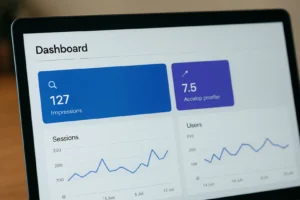
Open Looker Studio (free, no subscription required) and create a new report. Click Add data, search for the Search Console connector, and authenticate with the Google account that has access to the property. You will be asked to choose between two tables: Site Impressions and URL Impressions. Site Impressions aggregates data at the domain level and is the right starting point for a client summary report. URL Impressions breaks data down by individual page URL and is useful for deeper audits. For a client-facing report, start with Site Impressions.Build a minimum viable report with these elements: a date range control set to last 28 days, a scorecard for total clicks, a scorecard for total impressions, a scorecard for average CTR, a scorecard for average position, and a table showing the top 10 queries ranked by clicks. Add a comparison date range (previous period) so the client sees movement, not just an absolute number. That is five metrics and one table. It is enough for a monthly review conversation. See the Looker Studio data sources documentation for connector options.
-
Set sharing and schedule automated delivery.
Click Share in the top right of Looker Studio and set access to “Anyone with the link can view.” Send that link to the client. They can bookmark it and check live data any time without a Google account. Then go to Report > Schedule email delivery (documented here). Add the client’s email address, set the cadence to weekly or monthly depending on your retainer agreement, and save. From that point, the client receives a rendered PDF snapshot of the report on schedule. The freelancer does nothing after the initial setup.
What This Setup Does Not Cover (and When You Need More)
Looker Studio shows what Search Console exposes: clicks, impressions, and position. That is a meaningful slice of the picture, but it is not the whole one.
What this setup does not surface:
- Whether new content is being published on the agreed schedule, or whether it stalled in draft.
- Whether new posts are being indexed at a normal rate after publication. A page can be published and invisible to Google for weeks, and the Search Console Performance report will not flag it because there is nothing to report yet.
- Page speed degradation. Core Web Vitals data in Search Console is aggregate and lags by days. It does not alert you when a plugin update slows a client’s site.
- Competitor movement. If a competitor publishes 20 articles targeting the same queries your client ranks for, Search Console shows the downstream position drop, not the cause.
Freelancers managing five or more WordPress client sites hit a second problem: the Looker Studio setup scales to one property per report. There is no cross-property view in the free tier. When something breaks on one site, you find out when you happen to check that site’s report, not from a central alert. That is the core challenge covered in managing multiple WordPress client sites without dropping the ball.
How Strategift Adds the Layer Looker Studio Cannot
The Strategift AutoSEO platform connects to the same Search Console and Analytics data sources as the Looker Studio setup above, so there is no conflict and no duplicate tracking. What it adds is the layer that sits above the query data.
Specifically, AutoSEO watches:
- Indexing rate per site. When an article is published to WordPress, the platform tracks whether Google indexes it and flags it when that does not happen within a normal window. Looker Studio shows you clicks on indexed pages. It cannot show you the pages Google has not indexed yet.
- Page speed signals. Degradation that affects ranking is surfaced in the dashboard rather than discovered after a position drop shows up in monthly data.
- Competitor movement. When a competing domain increases its published content on overlapping queries, the platform surfaces the signal.
- Cross-site overview. A freelancer with eight client sites sees all properties in one dashboard. Issues are flagged by site, not discovered per-report-per-property.
The reporting layer pulls from Search Console and Analytics and surfaces action items rather than raw numbers. The difference is between a report that tells you position moved and a dashboard that tells you why and what to do next. For the specific problem of indexing failures, the starting point is understanding how to check whether Google has indexed your blog posts across a client portfolio.
Checklist: Minimum Viable Reporting Setup for a Freelance SEO Client
Use this list to confirm the setup is complete before you move to the next client property.
- Search Console property is verified and the client has been added as a Read-only User under Settings > Users and permissions.
- Looker Studio report is built using the Site Impressions data source from the Search Console connector.
- Report includes at least five metrics: total clicks, total impressions, average CTR, average position, and a top-queries table sorted by clicks.
- A comparison date range (previous 28-day period) is enabled so the client sees direction, not just an absolute number.
- Scheduled email delivery is enabled inside Looker Studio under Report > Schedule email delivery, set to weekly or monthly cadence matching the retainer agreement.
- The shareable report link (Anyone with the link can view) has been sent to the client and confirmed as working.
- An indexing check using how to check whether Google has indexed your blog posts is added to the monthly review routine so publication gaps surface before they affect performance data.
- Coverage report is reviewed monthly alongside the Performance report to catch indexing errors before they appear as position drops.
Frequently Asked Questions
Can I send Search Console data to a client automatically without giving them Google account access?
Yes. Connect Search Console to Looker Studio, build the report, and set sharing to “Anyone with the link can view.” Then enable scheduled email delivery inside Looker Studio. The client receives a live dashboard link and a recurring email. They never need a Google account or Search Console access unless you also want them to verify the raw data independently.
How often should a freelance SEO send clients a Search Console report?
Monthly is the minimum cadence that shows meaningful trend movement. Weekly works for clients in high-churn competitive niches or during an active link-building campaign. Daily is noise for most small business clients: ranking positions move within a normal band that daily reports will alarm without informing. Set the Looker Studio scheduled delivery to match the cadence your retainer agreement describes.
What metrics should a freelance SEO include in a client Search Console report?
Start with five: total clicks, total impressions, average CTR, average position, and the top ten queries by click count. Add a comparison to the previous 28-day period so the client sees direction, not just an absolute number. If the site has indexing issues, add a Coverage summary showing indexed versus not-indexed pages. Avoid adding more than eight metrics to a client-facing report: more data without context increases questions, not confidence.
Is Looker Studio free for freelance SEOs to use with clients?
Looker Studio is free. There is no per-user or per-report fee. You can connect multiple Search Console properties, build separate reports per client, and schedule email delivery at no cost. The only constraint is that each client’s Search Console property must be connected as a separate data source. There is no bulk-property connector in the free tier, which is why freelancers managing ten or more sites often look for a platform that aggregates across properties.
What does Search Console not show that freelancers should still report on?
Search Console shows query data, clicks, impressions, and indexing status. It does not show: whether new content is being published on schedule, page speed, Core Web Vitals history beyond the last 90 days at property level, or what competitors published this month. Freelancers who report only from Search Console leave out the production and technical layer, which is often where client sites are losing ground.
Can I automate Search Console reporting for multiple clients at once?
In Looker Studio you set up each client’s report separately and schedule each one individually. There is no batch scheduling across properties in the free tool. If you manage five or more client sites, the per-property setup time adds up. Platforms that connect to Search Console and Analytics across all sites in one dashboard reduce this to a single review, though those platforms typically charge a monthly fee per workspace.
The Setup That Ships Itself
The Looker Studio approach described above costs nothing beyond the time to build the first report, roughly 30 to 45 minutes per client property. After that, the client receives a live report link they can check any time and a scheduled email they receive without you doing anything. That is the entire value proposition: one setup, zero ongoing hours per client on the reporting side.
The honest limitation is that it only shows what Search Console records. It does not watch whether your work is getting indexed, whether the site’s speed is degrading, or whether a competitor is closing the gap. Those gaps require a layer that sits above the query data, and that is where AutoSEO fits into the workflow.
See how AutoSEO monitors and reports across your WordPress client sites at https://marketing.strategift.com/.