Publishing a blog post does not mean Google has read it, stored it, or will ever show it in search results. This guide covers four methods for checking index status, ordered from least to most reliable, so you spend your time on the check that actually answers the question.
Why checking index status is the first step, not the last
The most common failure pattern looks like this: an owner publishes 20 posts over three months, waits for rankings to move, checks Google, and discovers that only 4 of those 20 posts are indexed. The other 16 were never crawled, or were crawled and rejected, or are sitting in a queue Google has not cleared yet. Three months of ranking data on posts that were never in the index is not ranking data at all.
This is why index status is a diagnostic you run before you interpret traffic numbers, before you revise content, and before you publish more. The four methods below are not equally useful. The order matters: each method answers a more precise question than the one before it, and each takes longer to run. Start with Method 1 for speed, but do not stop there if the answer matters.
Method 1: The site: operator, fast but unreliable for a definitive answer
Open Google Search and type the following, replacing the slug with your actual post URL:
site:yourdomain.com/your-post-slug
If the post appears in the results, Google has that URL in its index at the time of the query. If nothing appears, that looks like the post is not indexed, but that conclusion is not safe to rely on.
The critical caveat: the site: operator queries a sampled subset of Google’s index, not the live record for a specific URL. A URL that is genuinely indexed can fail to appear in a site: query, and a URL that was recently de-indexed can still show up briefly. A missing result here is a prompt to investigate further, not a confirmed finding.
When to use it anyway: if you have no Search Console access and need a rough check on a single URL in under 30 seconds, the site: operator is a reasonable starting point. Treat the result as a signal, not an answer.
Method 2: URL Inspection in Search Console, the only authoritative answer
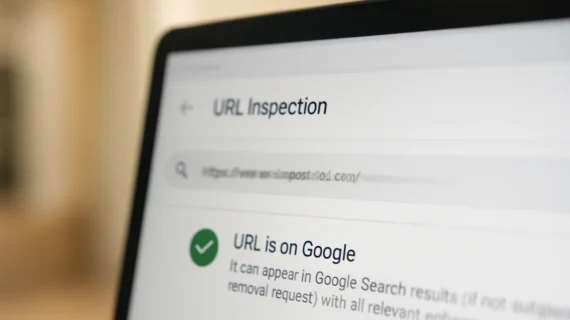
Open Google Search Console, paste the full URL of your blog post into the inspection bar at the top of any screen, and press Enter. Google returns one of three statuses: URL is on Google (indexed and eligible to appear in results), URL is not on Google (found but excluded, with a stated reason), or URL is unknown to Google (never crawled). The URL Inspection result is the single authoritative source, the site: operator and third-party tools are approximations of this same underlying data.
Google’s own documentation for the URL Inspection tool is at support.google.com/webmasters/answer/9012289.
The three status states in plain terms:
- URL is on Google: the page is indexed and eligible to rank. Note the word eligible. Indexed does not mean ranking.
- URL is not on Google: Google found or crawled the URL but excluded it. The tool shows the stated reason, which is the most useful piece of information on this screen.
- URL is unknown to Google: Google has no crawl record for this URL at all. This is a discovery problem, not a content problem.
Below the status, look at the last crawl date. If a post was published 61 days ago and the last crawl date is 60 days ago, that is not a coincidence. It means Google crawled the page once near publication and has not returned. Whether that is normal depends on your crawl frequency across the site, but it is worth noting. A post crawled once and not since is at higher risk of drifting out of the index as the content ages without updates.
Method 3: The Coverage report, check all posts at once instead of one at a time
URL Inspection answers the question for one URL. The Coverage report answers it for your whole site at once.
Navigate to Search Console, then Index, then Pages (this section was previously called Coverage). Google sorts every URL it knows about into four buckets:
- Error: URLs Google tried to index but could not, due to server errors, redirect loops, or similar technical blocks.
- Valid with warnings: indexed, but with a condition worth reviewing, such as indexed but blocked by robots.txt.
- Valid: indexed and clean. This is where you want your posts.
- Excluded: not indexed, for one of several stated reasons.
Non-indexed posts almost always appear in the Excluded bucket. The sub-reasons you will see most often on WordPress sites are “Crawled but not currently indexed,” “Discovered, currently not indexed,” and “Excluded by ‘noindex’ tag.” Of these, “Crawled but not currently indexed” is the most common for WordPress posts with thin or underdeveloped content. It means Google visited the page, read it, and decided not to store it, which is a content quality signal, not a technical one.
For a full explanation of what each exclusion reason means and how to fix it, that page covers each sub-reason and the specific check to run for each.
The Coverage report is portfolio-wide triage. If you have 40 posts and 18 are in Excluded, you have a pattern to investigate. URL Inspection is then how you diagnose each one individually.
Method 4: The Sitemaps report, confirm Google received the URL in the first place
Navigate to Search Console, then Sitemaps. This report shows every sitemap you have submitted and how many URLs Google has discovered from each.
The Sitemaps report answers a different question from Coverage: not whether Google indexed the URL, but whether Google was ever told about it. A post absent from the sitemap count is a different problem from a post Google saw and chose not to index. The fix is different in each case.
Cross-referencing the two reports: if Coverage shows a URL as Excluded but the Sitemaps report shows a very low submitted URL count relative to how many posts you have published, the sitemap itself may be the block. Most WordPress SEO plugins auto-generate and submit sitemaps, but they occasionally exclude posts marked as low-priority, set below a minimum word count threshold, or accidentally tagged as noindex at the plugin level. The check is to open the sitemap XML directly (usually at yourdomain.com/sitemap.xml or yourdomain.com/sitemap_index.xml) and confirm the post URL appears in the file.
Google’s documentation on sitemaps and their role in crawl discovery is at support.google.com/webmasters/answer/7440203.
What to do when a post is confirmed not indexed
The three most common causes, each requiring a different fix: a noindex directive on the post (check your SEO plugin’s post-level settings), an Excluded status of ‘Crawled but not indexed’ (Google crawled it but judged the content thin or redundant), or a page Google has never crawled at all (a discovery or sitemap problem). Identify which one applies before making any change, because the fix for a noindex tag is the opposite of the fix for a discovery gap.
- noindex tag present: Open the post in your SEO plugin’s settings panel and check the robots meta setting at post level. Also check WordPress Settings > Reading for the sitewide “Discourage search engines” checkbox.
- Crawled but not indexed: The content itself is the signal Google acted on. Review the post for thin sections, near-duplicate passages, or lack of a clear angle relative to other pages on the same topic.
- Never crawled: Check the sitemap for the URL, check internal linking to the post, and use the URL Inspection tool’s “Request Indexing” function to push the URL into Google’s queue.
For the full fix sequence by exclusion reason, see the guide on WordPress pages not indexed by Google. For what to do immediately after publishing to give a new post the best chance of being crawled quickly, see the post-publish action sequence to accelerate indexing.
How to stay on top of index status without checking manually each week
If you publish three posts per week, running URL Inspection one URL at a time does not scale. At ten posts per month, a manual check is still manageable. At thirty, it is a part-time task.
Search Console offers email alerts for coverage drops as a free option. When the number of indexed pages falls materially, Google sends a notification. This catches large drops but does not flag individual posts that quietly fail to index after publication.
AutoSEO includes an indexing watch that monitors whether posts published through the system surface as indexed and flags when they do not, without the owner needing to log in and run the check manually. That is the operational layer: publish, confirm crawled, confirm indexed, flag if not. See the full feature list at marketing.strategift.com.
Frequently asked questions
How long does it take Google to index a new blog post?
There is no guaranteed window. Google’s own documentation says crawling and indexing can take anywhere from a few days to several weeks depending on the site’s crawl budget, internal linking, and whether the URL is in a submitted sitemap. For a new site with few backlinks, four to six weeks before a post appears in Search Console as indexed is not unusual and is not necessarily a sign that something is wrong.
Is the site: operator in Google Search an accurate way to check indexing?
No, not definitively. The site: operator returns a sampled subset of Google’s index and can miss URLs that are actually indexed. Use it for a quick first look, but confirm any result, positive or negative, using the URL Inspection tool in Search Console, which queries Google’s live index record for that specific URL.
Why does Google show a post as indexed in Search Console but it does not appear in search results?
Indexed means Google has crawled and stored the page, not that it ranks for any query. A page can be indexed with average position 95, which means it exists in the index but appears on page 9 or beyond for its target queries. The Coverage report confirming “Valid” status is a prerequisite for ranking, but it is not a ranking signal itself.
Can a WordPress plugin accidentally prevent Google from indexing posts?
Yes. The most common cause is an SEO plugin setting that marks individual posts as noindex, either set deliberately and forgotten, or applied by a default rule such as noindexing posts below a certain word count. The second most common cause is a Search Engine Visibility checkbox in WordPress Settings > Reading that blocks all crawlers sitewide. URL Inspection in Search Console will show a noindex directive as the stated reason if either of these is active.
What is the difference between “Crawled but not indexed” and “Discovered but not indexed” in Search Console?
“Crawled but not indexed” means Google visited the URL, read the content, and chose not to add it to the index, usually because Google judged the content thin, duplicate, or low-value relative to other pages on the topic. “Discovered but not indexed” means Google found the URL in a sitemap or via a link but has not yet sent its crawler to read it. This is a crawl budget or queue issue, not a content quality signal.
See how AutoSEO monitors indexing status without you logging in: marketing.strategift.com