What is a technical SEO audit and why does a small business site need one?
A technical SEO audit is a check of whether Google can find, read, and rank your pages. It has nothing to do with whether the words on your site are good. A site with excellent product descriptions earns zero organic buyers if Google cannot crawl the page, the SSL certificate has expired, or the page loads in 8 seconds on a mobile connection. For a small business in Indonesia that depends on its website to generate enquiries, a broken technical foundation makes every other marketing effort pointless.
This guide covers four categories in order of how often they silently kill organic traffic on small business WordPress sites:
- Indexing: can Google reach and register your pages at all
- Speed: does the page load fast enough that buyers stay
- Structure: are the right pages canonical, without duplicate signals confusing Google
- Mobile: does the mobile version, which is what Google actually ranks, work correctly
None of these checks require a developer to run. They require about 30 to 45 minutes and three free tools. What you do with the results depends on what you find.
Check 1: Is Google actually reading your site?
Before anything else, confirm that Google can reach your site at all. Two settings block it completely, and both are invisible in normal browsing.
The robots.txt block. WordPress has a setting under Settings > Reading called “Discourage search engines from indexing this site.” It is meant for staging environments. The problem: developers build the site in staging with this box checked, hand over the finished site, and nobody unchecks it. The site looks fine in a browser. Google is reading a file that says “do not index this.” Buyers searching for your product never see you. This is the single most common technical SEO problem on small business WordPress sites.
Noindex tags left on live pages. Some themes and page builders add noindex meta tags to individual pages. These tags tell Google to visit but not to list the page in results. The result is the same as the robots.txt block: your page does not appear. For more detail on why WordPress pages are not indexed by Google, that guide covers both causes in full.
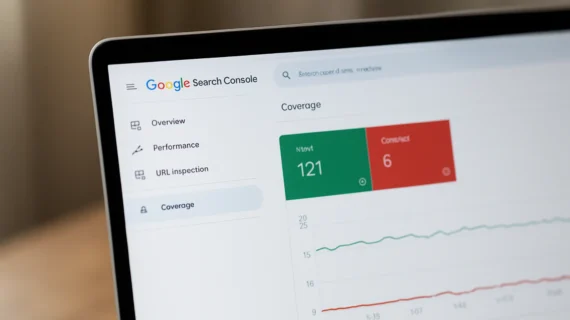
How to check. Open Google Search Console and go to the Coverage report (now labelled “Indexing” in newer versions). If your total indexed page count is zero or dramatically lower than the number of pages on your site, start with the robots.txt setting. For individual pages, the URL Inspection tool tells you how to check whether a specific page is indexed and what Google last saw when it crawled it.
A healthy result: indexed page count matches the number of pages you want public, and URL Inspection returns “URL is on Google.”
Check 2: Is every page you want indexed actually indexed?
Google being able to reach your site is different from Google having indexed every page on it. The Coverage report separates these into two states: Valid (indexed) and Excluded (crawled but not added to the index). Excluded is not always a problem. Some exclusions are intentional. Others are costing you buyers.
Common exclusion reasons on small business WordPress sites:
- Tag and category archive pages: WordPress automatically creates archive pages for every tag and category you use. These pages often contain thin or duplicate content. Google excludes them or treats them as low quality. If you have 40 product pages and 60 tag pages, the archives may be diluting your site’s signal.
- Paginated pages: Page 2, page 3 of a blog or product listing are frequently excluded because they carry little unique content. This is usually not a problem unless a key page is paginated.
- Thin pages: Any page with fewer than roughly 200 words of real content is a candidate for exclusion. Contact pages and landing pages with minimal text fall here.
3-step triage for excluded pages:
- Paste the page URL into the URL Inspection tool in Search Console. See what status Google reports.
- If Google says the page is valid but not indexed, click “Request Indexing.” This queues the page for a re-crawl, usually within a few days.
- If the page is excluded because of thin content, add substantive content first, then request indexing. Requesting indexing on a 50-word page will not help.
After you make a fix, it takes time before you see movement in Search Console. For detail on what to do after you fix an indexing problem, that guide covers the steps to accelerate re-crawling without waiting passively.
Check 3: Does your site load fast enough that Google does not penalise it?
Think of page speed this way: a buyer who waits more than 3 seconds on a mobile connection leaves before they see your offer. Google measures this behaviour at scale and uses it as a ranking signal called Core Web Vitals. These are three numbers:
- LCP (Largest Contentful Paint): how long before the main content of the page appears. A good score is under 2.5 seconds.
- CLS (Cumulative Layout Shift): whether elements on the page jump around as it loads, which disrupts the user. A good score is under 0.1.
- INP (Interaction to Next Paint): how quickly the page responds when someone taps a button or link. A good score is under 200 milliseconds.
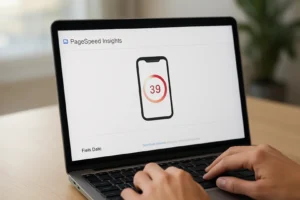
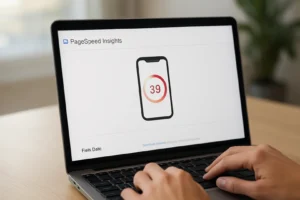
To check your scores, go to PageSpeed Insights and enter your URL. Run it on mobile, not desktop. A passing score is 90 or above and shown in green. Scores between 50 and 89 are amber. Below 50 is red and likely to hurt rankings.
The two most common culprits on Indonesian small business WordPress sites:
- Unoptimised product images: A product photo taken on a smartphone and uploaded without resizing can be 4 to 8 MB. The same image, compressed and in a modern format, should be under 200 KB. This single fix often moves LCP from red to amber.
- Cheap shared hosting: Server response time is the foundation of page speed. On overcrowded shared hosting, server response alone can exceed 1 second before the browser downloads a single byte of content. No plugin fully compensates for a slow server.
Site speed as a full topic, including which plugins help and what to ask a developer to fix, is covered separately. For now: get your PageSpeed Insights score and note which signals are red. That is the brief you hand to whoever manages your hosting or theme.
When you are ready to track these scores over time rather than checking manually, connecting Search Console to your WordPress site gives you a dashboard that shows Core Web Vitals trends without opening PageSpeed Insights each time.
Check 4: Is your site secure and structurally sound?
HTTPS and SSL. Every page on your site should load with a padlock in the browser address bar and no warnings. If you see “Not Secure” or a broken padlock, your SSL certificate has either expired or your site has mixed-content errors, meaning some elements (images, scripts) are loading over HTTP while the page itself is HTTPS. The symptom an owner notices: buyers sometimes see a security warning before entering your site. The fix is for a developer or your hosting provider. The check takes 10 seconds: load your homepage and look at the address bar.
Canonical tags. A canonical tag tells Google which version of a URL is the definitive one. Without them, Google may treat www.yoursite.com and yoursite.com as different sites, splitting your ranking signal. Check this by opening any page and viewing its source (right-click, View Page Source, search for “canonical”). The URL in the canonical tag should match the URL you use everywhere: consistently www or consistently non-www, consistently with or without a trailing slash. A healthy site has one consistent canonical URL per page and it matches the URL in internal links.
Mobile usability. Google indexes the mobile version of your site, not the desktop version. Open Search Console and go to the Mobile Usability report. A healthy result shows zero errors. Common errors include clickable elements too close together and text too small to read. Each error is listed with the affected page count. This is not a check you can do by looking at your site on a phone, because Google may be rendering it differently from how your phone’s browser does.
How often should a small business run a technical SEO audit?
Run a full technical audit every 90 days. Run a lightweight check, covering robots.txt and Search Console Coverage, within 24 hours of any WordPress plugin update or theme change. Those two events cause the majority of technical regressions: a plugin update that overwrites robots.txt can silently block Google from your entire site for weeks before anyone notices. Between audits, enable Search Console email alerts so at minimum a sharp drop in indexed pages triggers a notification.
The 90-day cadence covers the four checks in this guide: indexation status, Core Web Vitals scores, HTTPS health, and mobile usability. It takes 30 to 45 minutes. The 24-hour post-update check takes 5 minutes and focuses only on whether the coverage count has dropped and whether the site still loads cleanly over HTTPS.
The practical problem for most business owners: the 90-day reminder disappears into a busy schedule. The post-update check happens at 11pm when the plugin auto-updated overnight. This is where passive monitoring replaces manual discipline.
What to do when you have found the problem but do not have time to fix it
Technical issues left unfixed have direct business consequences:
- Pages not indexed = zero organic buyers. No matter how well written the page, if it is not in Google’s index, no one searching for your product will find it.
- Slow pages = buyers leaving before they enquire. A mobile user on a 4G connection who waits 5 seconds for your product page to load is gone. That is not a marketing problem. That is a speed problem.
- Broken mobile usability = Google ranks the broken version. If your mobile layout has errors, Google may rank your pages lower because the experience it measures is the mobile one.
Strategift monitors indexation and Search Console signals continuously, keeps publishing new indexed content to your WordPress site on schedule, and surfaces the technical issues you need to hand to a developer. It does not rewrite theme code or fix hosting configuration. What it does stop is the owner being blind to the problem for weeks or months while organic traffic silently disappears.
The monitoring runs whether or not you are logged in. The content keeps publishing. The reports show which pages are indexed, which are not, and where the numbers moved in Search Console over the last 28 days.
See how Strategift monitors your WordPress SEO while you run your business
Frequently asked questions
What is the most common technical SEO problem on small business WordPress sites?
The most common issue is pages being accidentally blocked from Google, usually because the WordPress setting that prevents search engines from indexing the site was left on after a site was built on a staging environment and then moved live. The second most common is unoptimised images that push page load time above 3 seconds on mobile. Both are invisible to the owner until they check Search Console or PageSpeed Insights.
Do I need a developer to fix technical SEO problems on my WordPress site?
Some fixes, such as unchecking the WordPress search engine visibility setting or submitting a sitemap in Search Console, require no developer. Others, such as correcting mixed-content HTTPS errors or fixing Core Web Vitals caused by theme code, do require a developer or a performance plugin configured by someone who understands it. The audit tells you which category each problem falls into so you know whether to handle it yourself or brief a developer.
How long does a technical SEO audit take for a small WordPress site?
For a site with under 50 pages, the four checks in this guide take about 30 to 45 minutes using free tools: Google Search Console for indexation and mobile usability, PageSpeed Insights for Core Web Vitals, and your browser for the HTTPS padlock. Identifying the problems takes 30 minutes. Fixing them, depending on what you find, takes anywhere from 10 minutes to a conversation with your developer.
Will fixing technical SEO issues immediately improve my Google rankings?
Fixing a blocked indexation issue means Google can now see the page, but ranking still depends on the content and the competition for your keyword. Think of it this way: a technical fix removes an obstacle that was preventing ranking, it does not guarantee one. Pages that were already indexed and had content often show position improvements within 2 to 6 weeks after a speed or mobile usability fix, based on Search Console data, but every site is different.
Is Google Search Console free to use and do I need a technical background to read it?
Google Search Console is free. You verify ownership of your site, usually by adding a small piece of code or uploading a file, and then Google populates it with data over the following days. Reading the Coverage report and the Mobile Usability report does not require a technical background. Each issue is listed by name with a count of affected pages. This guide tells you which report to open and what a healthy result looks like.
Can I automate technical SEO monitoring so I do not have to remember to audit every 90 days?
Partial automation is possible with Google Search Console email alerts, which notify you when indexed page counts drop sharply or when a manual action is applied. Full monitoring, where someone is watching Core Web Vitals trends, indexation status, and content health simultaneously, is what a platform like Strategift handles on top of its content publishing. The owner does not run the audit; the system flags when something changes.